
Which product do you need help with?
FLASH BaseTM
FAQs
Getting startedFAQs
OperationFAQs
Troubleshooting“E3” Error
Volume settings
LED display settings
Other settings
Software update
Open this page on your smartphone or tablet and scan the QR code below with your FLASH BaseTM if you encounter the “E3” error.
You can adjust the volume of the warnings and tones of your FLASH BaseTM. Open this page on your smartphone or tablet and scan a QR code with the BaseTM to adjust the volume.
Note: you cannot adjust these settings when a slot is running a test on the device.
High sound setting
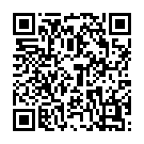
Low sound setting
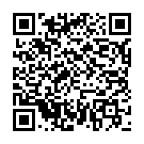
Mute sound setting
You can adjust the brightness of the LED display of your FLASH BaseTM. Open this page on your smartphone or tablet and scan a QR code with the BaseTM to adjust the brightness.
Note: you cannot adjust these settings when a slot is running a test on the device.
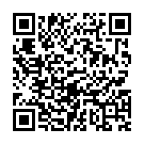
High brightness setting
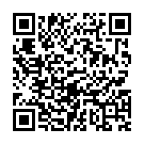
Low brightness setting
If necessary (e.g., instructed by the manufacturer or your authorized distributor), you can conduct a self-test to assess the status of your FLASH BaseTM. Open this page on your smartphone or tablet and scan a QR code with the BaseTM to start the self-test.
Note: you cannot initiate a self test if any slot is running a test on the device.
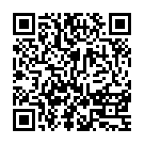
Start self-test
If indicated by the manufacturer or your authorized distributor, you can download and install the most updated software of your FLASH BaseTM. Follow the “FLASH Software Update Guide” in the link below to complete the update.
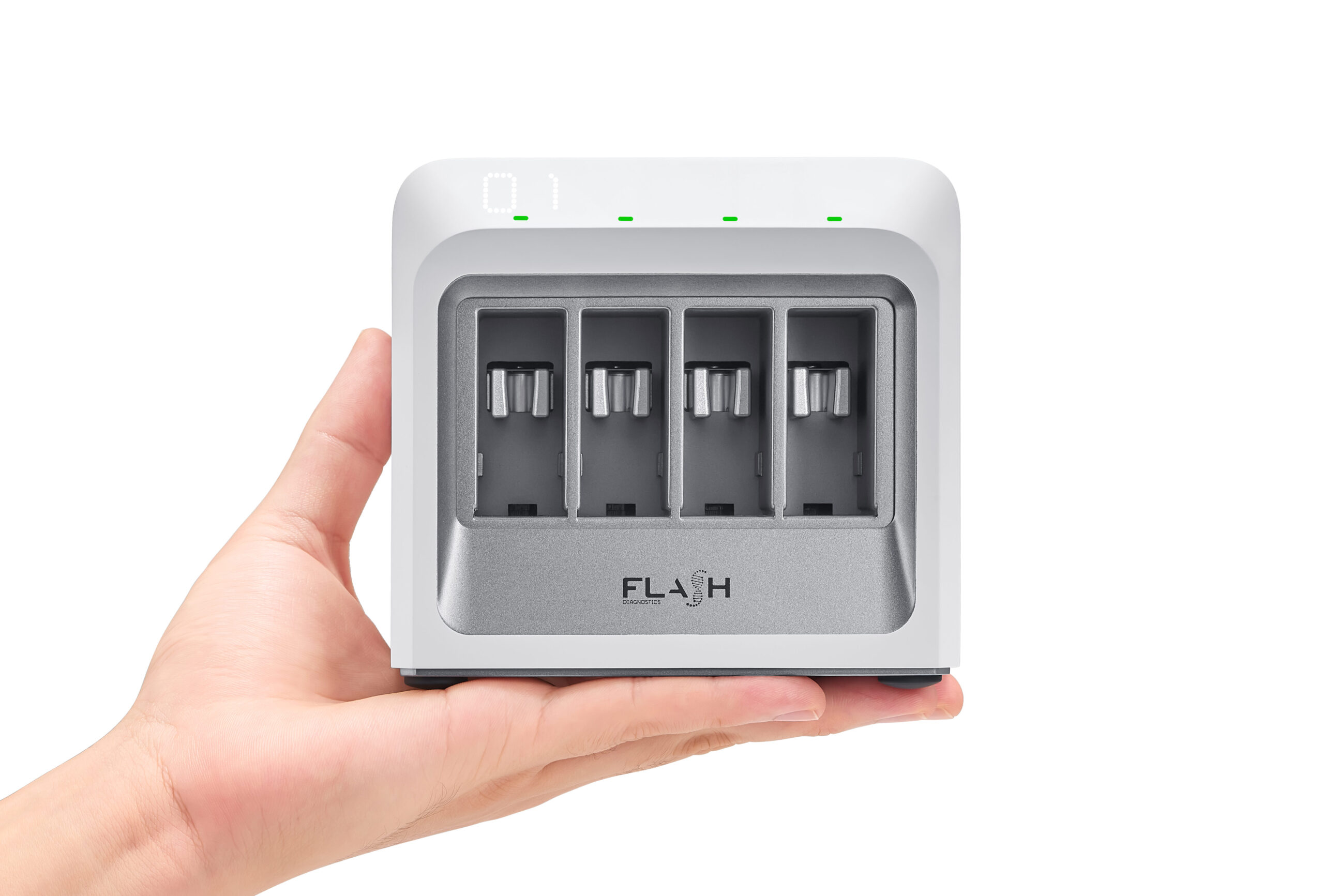
What is the FLASH Base™?
The FLASH Base™ is a benchtop device used exclusively with FLASH VetID™ test cartridges for qualitative detection of nucleic acid targets. It authenticates each cartridge via QR code and automatically sets the correct reaction parameters. It does not perform sample processing or result interpretation itself.
The FLASH Base™ has 4 reaction slots and supports up to 4 cartridges running simultaneously.
How do I install the FLASH Base™?
It’s very simple!
Place it on a flat, stable, dry surface away from direct sunlight, vibration, and heat, with 15 cm clearance on the right side. Plug in using only the supplied AC adaptor and plug. After a self-test, an animation will appear on the LED display indicating it’s ready to use.
What power supply do I need?
15VDC, 3A, 45W. Use only the supplied AC adaptor. We do not advise using other power supplies or cables as it may cause malfunctions and trigger error warnings.
How do I start using the FLASH Base™?
Tap the sensor once to wake it from Sleep Mode (entered after 10 minutes of inactivity). All 4 LEDs will turn solid green when ready.
Scan the test cartridge’s QR code with the scanner on the right side of the BaseTM as indicated in your FLASH VetID™ test instructions, then insert the cartridge into the assigned slot (shown on the display and flashing green).
What if I insert a cartridge into the wrong slot after scanning it?
Simply remove it and insert it into the correct slot before the 1-minute timeout. If it times out, scan the same cartridge again.
How do I know a test is running correctly?
After insertion, a countdown will display and the green LED will breathe slowly while the run is in progress.
Can I run another test while one is in progress?
Yes. You can run up to 4 tests simultaneously. Simply scan a new Test Cartridge after a reaction slot has already started running a test.
What happens if I remove a cartridge before the test finishes?
Reinsert it within 1 minute to continue. If not reinserted in time, an E6 error appears — clear it by double-tapping the tap sensor and rerun the test with a new cartridge (used cartridges cannot be reused).
Is it normal for parts of the device to feel warm?
Yes — internal metal parts in the reaction slots become hot during use. Do not touch them directly.
What do the error codes (E1–E10) mean?
Very likely you will never see these errors. In case you do, each error code corresponds to a specific issue — from power and cartridge errors to hardware faults. Click on this full FLASH Base™ Troubleshooting Quick Guide for the complete list and recommended actions.
What should I do if I see a “Too Hot” or “Too Cold” message?
Move the FLASH Base™ to a room between 15°C and 30°C (59°F–86°F), then try again.
The LED display shows “Ed” — what do I do?
This means the scanned Test Cartridge is expired. Double-tap the tap sensor to dismiss the alert, then scan a valid test cartridge to continue.
FLASH PiccoloTM
FAQs
Getting startedFAQs
Setup & operationFAQs
TroubleshootingSoftware update
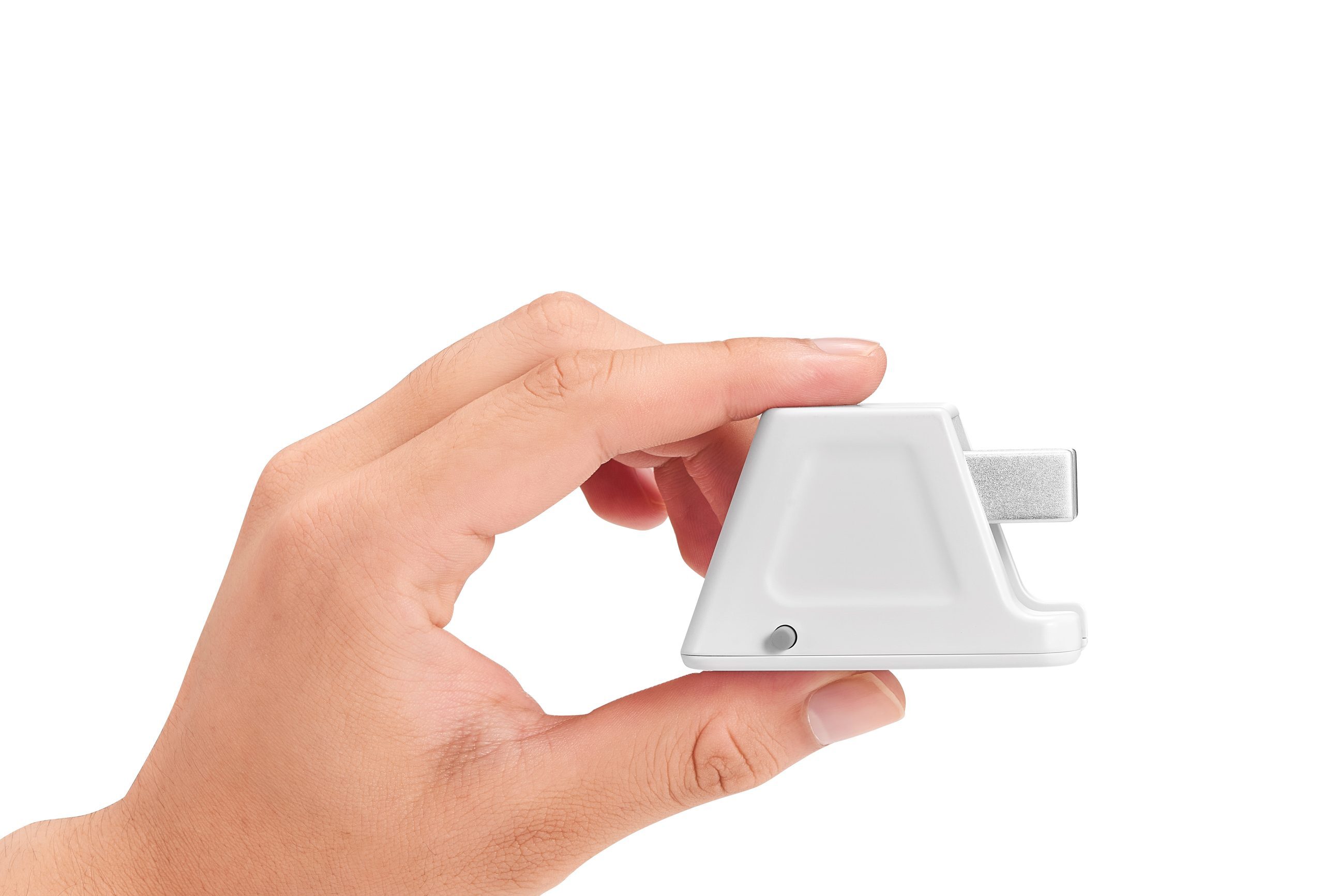
What is the FLASH Piccolo™?
The FLASH Piccolo™ is a compact diagnostic instrument used with FLASH VetID™ Test Cartridges to run molecular diagnostic tests. It heats the cartridge at the correct temperature for the selected test and uses LED indicators to guide you through setup and show test progress.
What’s included in the box?
The FLASH Piccolo™ ships with a USB-C Power Delivery (PD) AC adaptor and a USB-C to USB-C cable.
How do I power up the FLASH Piccolo™ for the first time?
Connect the FLASH Piccolo™ to the supplied USB-C PD adaptor (or a power bank supporting 9V⎓2.22A output) using the included USB-C cable. The three LED indicators will turn solid blue once powered correctly.
What LED color should I select for my specific test kit?
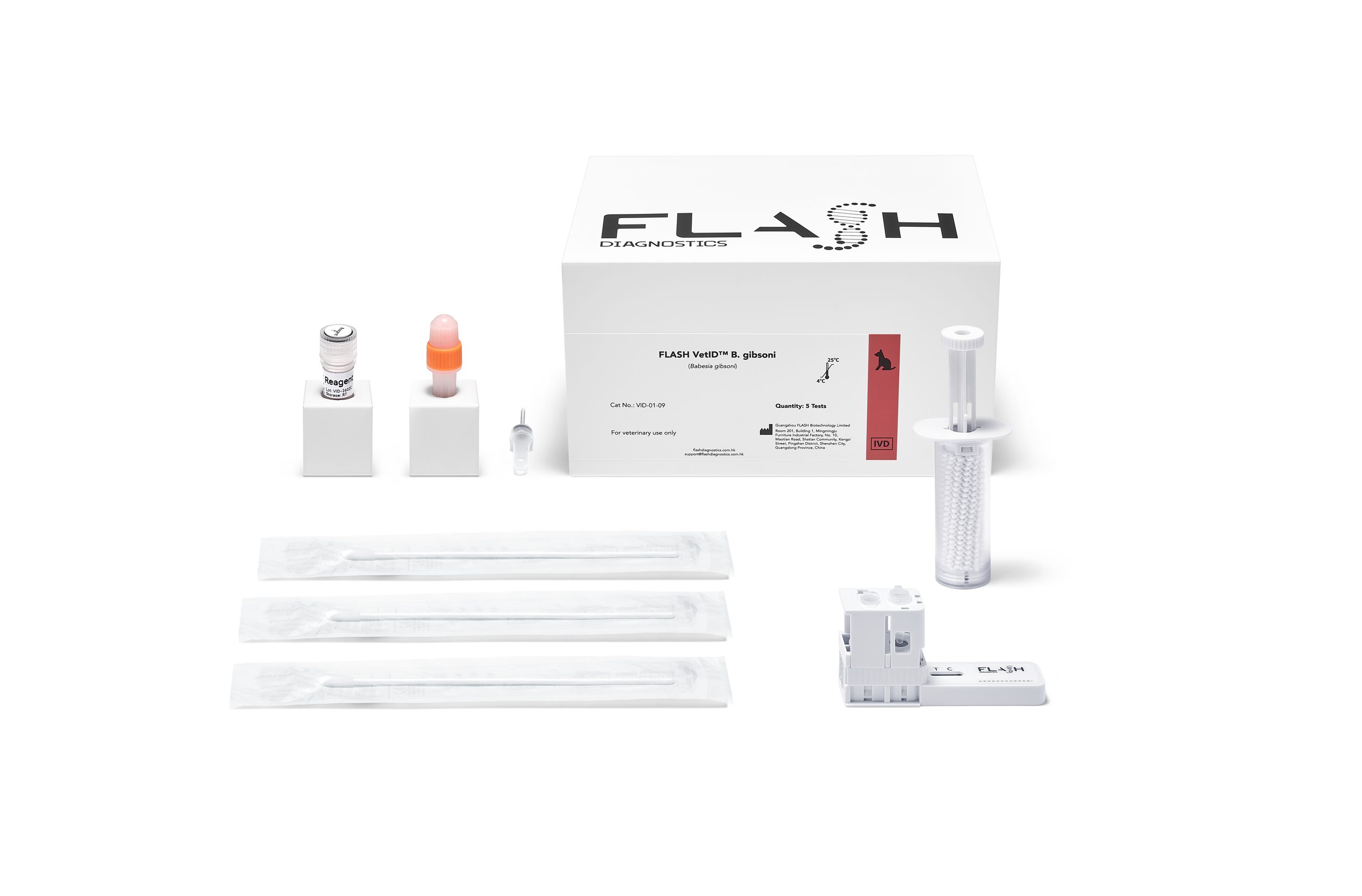
The LED color for each FLASH VetID™ test kit is indicated by the color of the reaction tube’s cap on the Test Cartridge.
You can also find the full list here.
How do I know the test has started successfully?
Once the cartridge is fully inserted, the selected LED color will begin flashing to indicate the reaction is in progress.
How long does a test take to complete?
Test duration depends on the specific FLASH VetID™ kit, but overall all tests take between 30 and 35 minutes. Progress is shown via the LED indicators until they turn solid green.
What do I do after the test is done (solid green)?
Remove the Test Cartridge, activate it, and read the results by following the Instructions for Use provided with your FLASH VetID™ test kit.
Is it normal for the metal parts to be warm after use?
Yes — metal parts may be warm after use. Avoid touching the metal parts directly after a test.
Why are all three LEDs red when I connect power?
This indicates the connected power supply doesn’t meet the FLASH Piccolo™’s requirements. Replace it with a supported adaptor or power bank (9V⎓2.22A, 20W max).
Why won’t the LEDs turn on at all?
Check that the power source and cable match the required specifications. If the LEDs stay off, the power source or cable may be incompatible.
Can I use a different USB-C cable or power adaptor?
Only if it is a USB-C to USB-C PD-compliant cable rated for 3A or higher, and a power source supporting 9V⎓2.22A output. Using an unsupported cable or adaptor could affect correct functioning.
I accidentally removed the cartridge — can I still get a result?
Yes, if you reinsert it within 1 minute of removal. The reaction will resume. If more than 1 minute passes, the test cannot be resumed. The LED will turn solid red to indicate an error. Press the button once to clear the error, discard the used cartridge, and repeat the test with a new Test Cartridge.
Why does my Piccolo show two red LEDs and the third one is blinking (blue or red)?
The FLASH Piccolo™ checks ambient temperature on power-up. If it’s outside the 15°C–30°C (59°F–86°F) operating range, the device won’t start the test and will display a “Too Cold” or “Too Hot” LED pattern.

Move the FLASH Piccolo™ to an environment within the specified operating range and allow it sufficient time to equilibrate before trying again.
What does it mean if I see an alternating red LED pattern?
Specific alternating red LED patterns (as shown in the user guide) indicate a hardware error. Do not continue using the device.

Contact FLASH Diagnostics technical support ([email protected]) or your authorized distributor for assistance.
If indicated by the manufacturer or your authorized distributor, you can download and install the most updated software of your FLASH PiccoloTM. Follow the “FLASH Software Update Guide” in this link to complete the update.